Chrome DevTools MCP
Chrome公式DevTools MCPサーバー。AIエージェントが実際のブラウザを操作・検査・デバッグできます。
インストール
トランスポート: stdio
claude mcp add chrome-devtools --scope user npx chrome-devtools-mcp@latest
ツール一覧 (61)
click
Clicks on an element from the page snapshot.
drag
Drags an element onto another element.
fill
Types text into an input, text area, or selects an option.
fill_form
Fills out multiple form elements at once.
handle_dialog
Accepts or dismisses a browser dialog.
hover
Hovers over an element.
press_key
Presses a key or key combination.
type_text
Types text using the keyboard into a focused input.
upload_file
Uploads a file through a file input element.
click_at
Clicks at given coordinates (requires --experimentalVision).
close_page
Closes a page by its index.
list_pages
Lists all open pages including extension service workers.
navigate_page
Goes to a URL, or navigates back, forward, or reloads.
new_page
Opens a new tab and loads a URL.
select_page
Selects a page as context for future tool calls.
wait_for
Waits for specified text to appear on the selected page.
emulate
Emulates viewport, geolocation, color scheme, network conditions, and more.
resize_page
Resizes the page window to specified dimensions.
performance_analyze_insight
Gives detail on a specific performance insight from a trace.
performance_start_trace
Starts recording a performance trace.
performance_stop_trace
Stops the trace and returns performance insights.
get_network_request
Gets details of a single network request.
list_network_requests
Lists network requests made by the page.
evaluate_script
Evaluates JavaScript in the page and returns the result.
get_console_message
Gets a single console message by index.
get_css_styles
Gets the computed CSS styles of an element.
lighthouse_audit
Runs a Lighthouse audit on the page.
list_console_messages
Lists console messages (errors, warnings, logs).
screencast_start
Starts a screencast recording of the page.
screencast_stop
Stops the screencast recording.
set_logpoints
Sets logpoints (conditional console logging) in page scripts.
take_screenshot
Captures a screenshot of the page or a specific element.
take_snapshot
Gets the page accessibility tree with element UIDs.
take_heapsnapshot
Takes a JS heap snapshot for memory analysis.
analyze_heapsnapshot_contexts
Analyzes heap snapshot contexts.
close_heapsnapshot
Closes a heap snapshot session.
compare_heapsnapshots
Compares two heap snapshots to find growth.
get_heapsnapshot_class_nodes
Gets class nodes from a heap snapshot.
get_heapsnapshot_details
Gets details of a heap snapshot.
get_heapsnapshot_dominators
Gets dominator nodes from a heap snapshot.
get_heapsnapshot_duplicate_strings
Finds duplicate strings in a heap snapshot.
get_heapsnapshot_edges
Gets edges of a heap snapshot node.
get_heapsnapshot_object_details
Gets details of a heap object.
get_heapsnapshot_retainers
Gets retainers of a heap object.
get_heapsnapshot_retaining_paths
Gets retaining paths of a heap object.
get_heapsnapshot_summary
Gets a summary of a heap snapshot.
query_heapsnapshot_objects
Queries objects in a heap snapshot.
install_extension
Installs a Chrome extension.
list_extensions
Lists installed Chrome extensions.
reload_extension
Reloads a Chrome extension.
trigger_extension_action
Triggers an extension action (e.g. toolbar click).
uninstall_extension
Uninstalls a Chrome extension.
execute_3p_developer_tool
Executes a third-party developer tool.
list_3p_developer_tools
Lists available third-party developer tools.
execute_webmcp_tool
Executes a WebMCP tool exposed by the page.
list_webmcp_tools
Lists WebMCP tools exposed by the page.
get_os_app_state
Gets the install state of a PWA on the OS.
install_pwa
Installs a Progressive Web App.
launch_pwa
Launches an installed PWA.
uninstall_pwa
Uninstalls a PWA.
configure_webauthn
Configures a virtual WebAuthn authenticator.
料金
Free and open source (Apache 2.0). No account or API key needed.
Chrome DevTools MCPレビュー:AIエージェントに実際のブラウザを動かさせる
ウェブのデバッグはこれまでずっと、人がブラウザを見つめる作業でした。エージェントがコードを書き、あなたがDevToolsを開き、コンソールを読み、ネットワークタブを確認し、見たことを報告します。エージェントは、ウェブページの真実が存在する場所を見ることができません。
Chrome DevTools MCPはChrome DevToolsチームの公式サーバーで、エージェントに実際のChromeブラウザの鍵を渡します。バージョン1.12.0はコンソール、ネットワーク、パフォーマンス、要素、ナビゲーションをカバーする61のツールを持ち、エージェントはページを開き、クリックし、コンソールエラーを読み、ネットワークリクエストを追跡し、パフォーマンスを自分で測定できます。エージェントがライブのウェブページを検査する標準的な方法です。
Chrome DevTools MCPとは?
Chrome DevTools MCPはChrome DevToolsチームが保守するModel Context Protocolサーバーです。ローカルで動作しChromeに接続して、開発者がDevToolsパネルで使うのと同じ機能をエージェントが呼び出せるツールとして公開します。サーバーは1つのコマンドで実行できるパッケージとして配布され、Claude Code、Cursor、VS Code、Claude Desktopの標準設定で動作します。
ツールは明確に分かれています。ナビゲーションツールはページを開き履歴を移動します。コンソールツールはログメッセージとエラーを読みます。ネットワークツールはリクエスト、レスポンス、ヘッダー、タイミングを調べます。パフォーマンスツールはトレースを記録し読み込みを測定します。要素ツールはDOMを検査して操作します。エージェントはスクリーンショットを撮り、デバイスをエミュレートし、ブラウザが実際に描画する通りにページを読むこともできます。
主な機能
1. 開発者のようにコンソールを読む
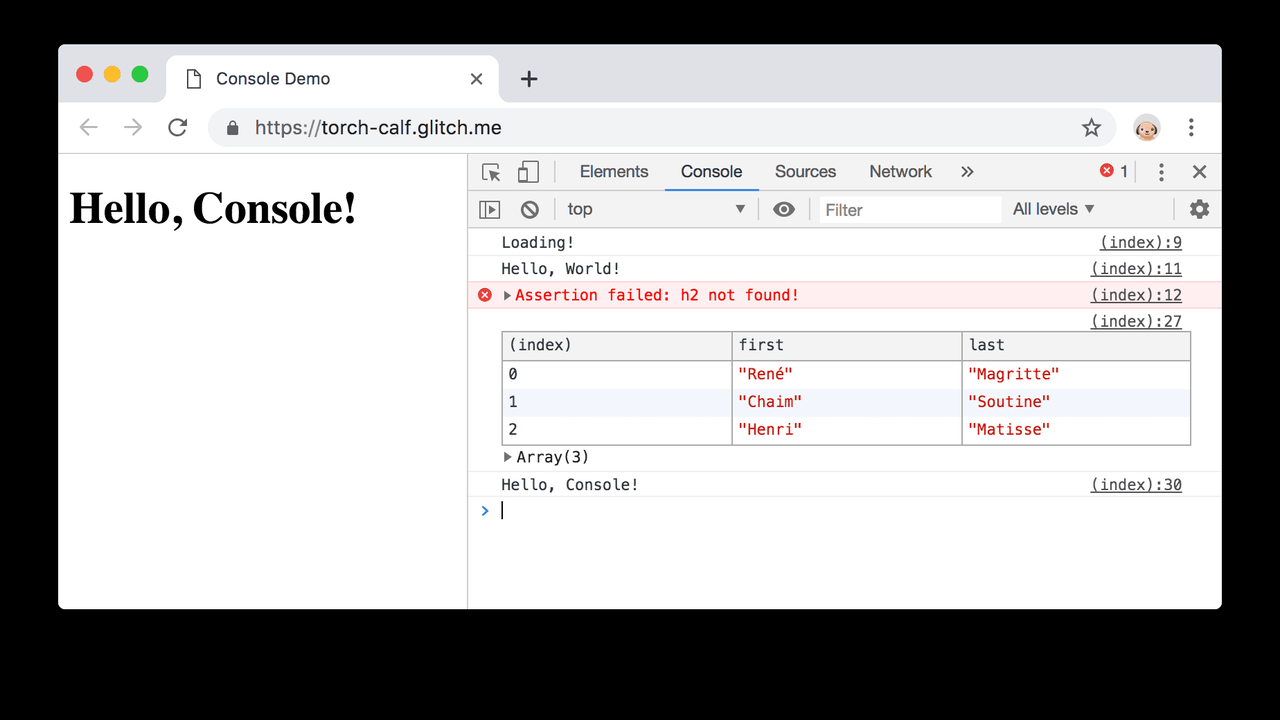
エージェントはブラウザから直接コンソールメッセージ、警告、エラーを読みます。ページが壊れたとき、正確なエラー、スタック、行番号を見ることができ、DevToolsからコピーしてもらう必要はありません。
2. 完全なネットワーク検査
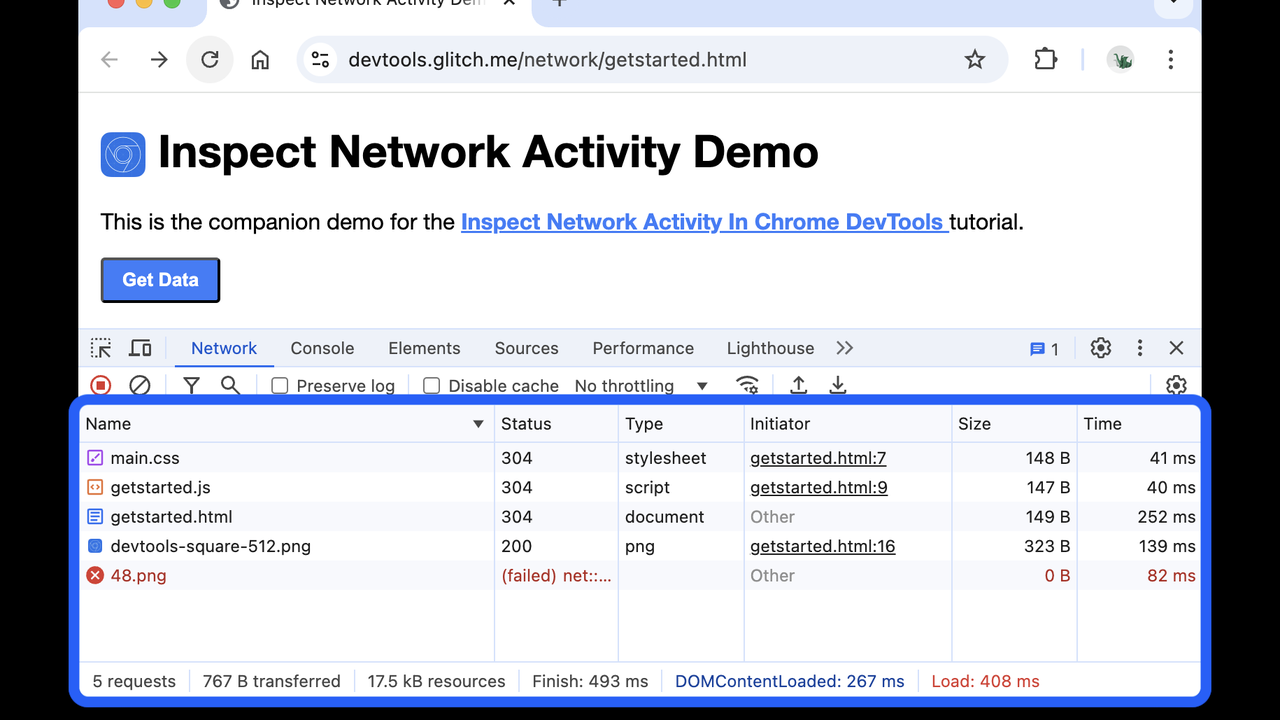
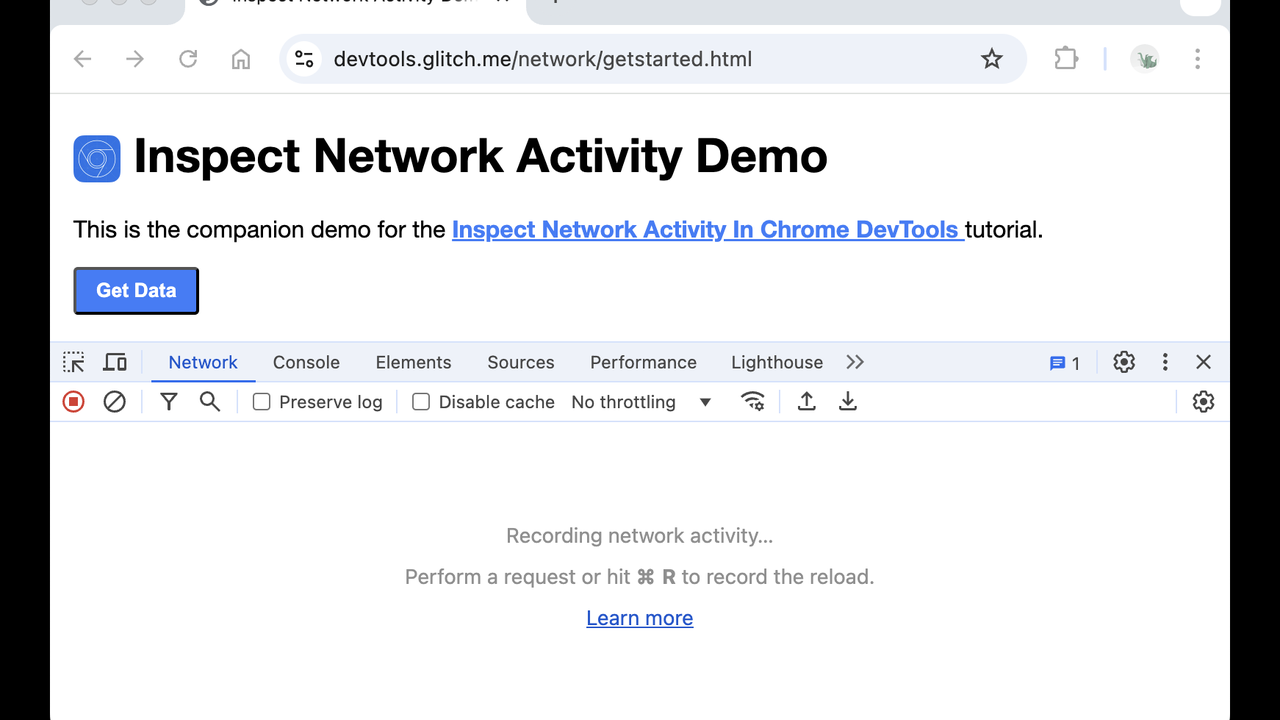
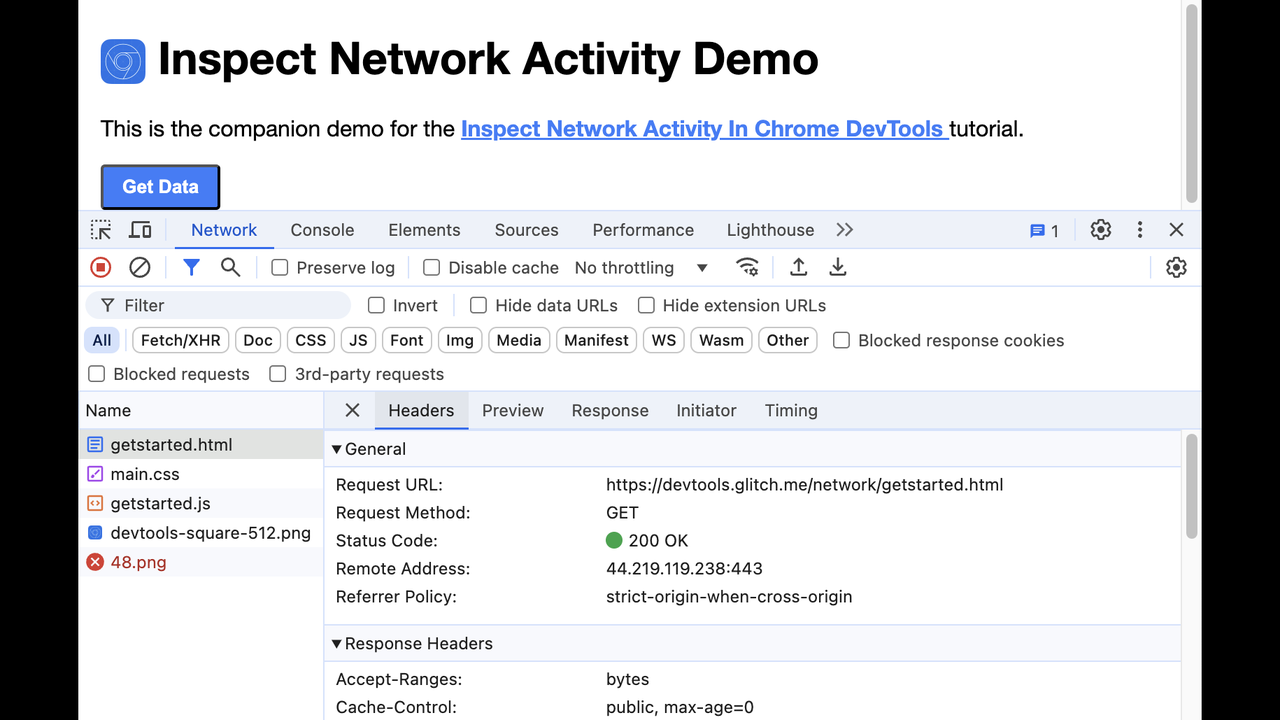
すべてのリクエストが見えます。URL、メソッド、ヘッダー、ステータス、タイミング、ボディです。エージェントは失敗したAPI呼び出し、遅いアセット、欠けたヘッダーを、あなたがネットワークタブを開くことなく見つけられます。
3. エージェント自身が測定できるパフォーマンストレース
パフォーマンスツールはトレースを記録し、読み込み時間、長いタスク、レイアウトシフトを報告します。エージェントはページが速くなったかを推測するのではなく、修正を測定できます。
4. 読むだけでなくページを操作する
クリック、入力、スクロール、ナビゲーションです。エージェントは手順を自分で実行してバグを再現し、修正後に同じフローをもう一度実行して確認できます。
5. スクリーンショットと実際の描画DOM
スクリーンショットとDOMスナップショットは、レイアウトとスタイルを含め、ブラウザが描画する通りのページを示します。エージェントはコードが正しいと決めつけるのではなく、自分のフロントエンド作業を目で確認できます。
仕組み
1つのコマンドでサーバーをクライアントに追加し、リモートデバッグを有効にしてChromeを起動するか、サーバーに起動させます。エージェントが接続すると61のツールが現れます。ページを開かせ、壊れているフローをたどらせ、見つけたことを報告させます。修正を提案したら、ページを再読み込みさせてエラーが消えたか確認できます。
サーバーはローカルで動作し自分のChromeに接続するため、アカウントもキーもホスト型サービスも関与しません。閲覧は自分のマシンに留まります。
誰に向いているか
AIアシスタントと一緒にフロントエンドをデバッグする開発者、エージェントに自分のウェブ作業を検証させたいチーム、今日もウェブページを手動でテストしている人です。コンソールエラーをチャットに貼ったことがあるなら、それを不要にするツールがこれです。
料金
無料でオープンソース(Apache 2.0)です。アカウントやAPIキーは不要です。
長所と短所
長所
- 公式サーバー:ブラウザ全体をカバーする61のツール
- エージェントは要約ではなく実際のコンソール、ネットワーク、パフォーマンスデータを見る
- 無料、オープンソース、ローカル:アカウントもキーもホスト型サービスも不要
- ページを操作でき、フローを再実行して修正を検証できる
短所
- ローカルのみ:自分のマシン上のブラウザを動かし、リモートやホスト型ブラウザではない
- エージェントはクリックや入力ができるため、訪れたページの状態を変える可能性がある。信頼できるページで使うこと
- 61のツールは多く、正しいものを選ぶには良いプロンプトが必要
最終評価
AIエージェントがフロントエンドを書くなら、開発者と同じようにそのフロントエンドを見られるべきです。これが公式で、無料で、ローカルな方法です。インストールして、作業中のページを示し、コンソールエラーをチャットにコピーする人をやめましょう。