Figma MCP
Figma's official MCP server: let AI agents read designs and turn them into production code.
Install
Transport: http
claude mcp add --transport http figma https://mcp.figma.com/mcp
Tools (32)
get_design_context
Gets design context and code for a layer or selection (default output React + Tailwind).
get_metadata
Gets a lightweight XML outline of a selection (IDs, names, types, positions, sizes).
get_screenshot
Takes a screenshot of a selection so the agent can see the design.
get_variable_defs
Lists variables and styles used in a selection (colors, spacing, typography).
get_code_connect_map
Gets Code Connect mappings for selected instances.
get_code_connect_suggestions
Suggests Code Connect mappings (Figma-prompted workflow tool).
get_context_for_code_connect
Gets component metadata for Code Connect templates (remote only, Figma-prompted).
get_figjam
Converts FigJam diagrams to XML.
get_libraries
Lists subscribed and available libraries (remote only).
search_design_system
Searches libraries for components, variables, and styles (remote only).
download_assets
Downloads exports and original source images for up to 20 nodes (remote only).
get_motion_context
Gets keyframe animation data and CSS/Motion code snippets for an animated node.
get_shader
Reads a shader's source.
list_shaders
Lists shader effects and fills in your library.
list_file_shaders
Lists shaders used in a specific file (remote only).
get_generative_plugin
Reads a generative plugin's source (remote only).
list_generative_plugins
Lists generative plugins in your library (remote only).
whoami
Gets your identity, plans, and seats (remote only).
use_figma
General-purpose tool to create, edit, delete, or inspect content in Figma files (remote only).
create_new_file
Creates a blank Figma Design, FigJam, or Figma Slides file (remote only).
generate_figma_design
Turns live web UI into design layers (remote only).
generate_diagram
Generates a FigJam diagram from a description or Mermaid syntax (remote only).
generate_image
Generates and places an image in a Figma file (remote only).
html_to_figma
Converts an HTML document into design layers (remote only).
upload_assets
Uploads images and SVGs into a Figma file (remote only).
send_code_to_figma
Imports a local project into Figma as a Make file or code layer (remote only).
add_code_connect_map
Maps a Figma component to a code component.
send_code_connect_mappings
Confirms suggested Code Connect mappings (Figma-prompted).
create_shader
Creates a shader effect or fill starter (remote only).
update_shader
Updates a shader's source (remote only).
create_generative_plugin
Creates a generative plugin starter (remote only).
update_generative_plugin
Updates a generative plugin's source (remote only).
Quality and security
Pricing
Free to connect; requires a Figma account. The remote server authenticates with your Figma login.
Figma MCP Review: Turn Design Files Into Production Code
Every design-to-code handoff has the same bottleneck. The design lives in Figma, the code lives in the editor, and a person sits between them translating pixels into components, guessing at spacing, colours, and behaviour. The result is slow, lossy, and full of small mismatches that only show up in review.
Figma MCP removes the person from the middle. It is Figma's own official MCP server, hosted by Figma at a remote endpoint, and it gives an AI agent direct, structured access to design files: frames, components, variables, and code layers. The agent reads the design the way Figma stores it, then writes the implementation. Design-to-code is the canonical MCP use case, and this is the reference way to do it.
What is Figma MCP?
Figma MCP is a remote MCP server run by Figma. You connect your client to the Figma endpoint with one command or one JSON entry, sign in with your Figma account, and the agent can then fetch designs, inspect variables, and generate code. There is no local server to run and no package to install: the server lives at Figma, and the client talks to it over HTTP.
The server exposes 32 tools, split into read and write operations. Read tools fetch a design, a frame, or a specific node, list variables and components, and pull screenshots. Write tools create and edit frames, set text and layout, and apply variables. A companion plugin and a set of skills in the official guide repository help the agent use the tools well, including a design-to-code workflow that produces clean, component-based output.
Key Features
1. Read any design as structured data
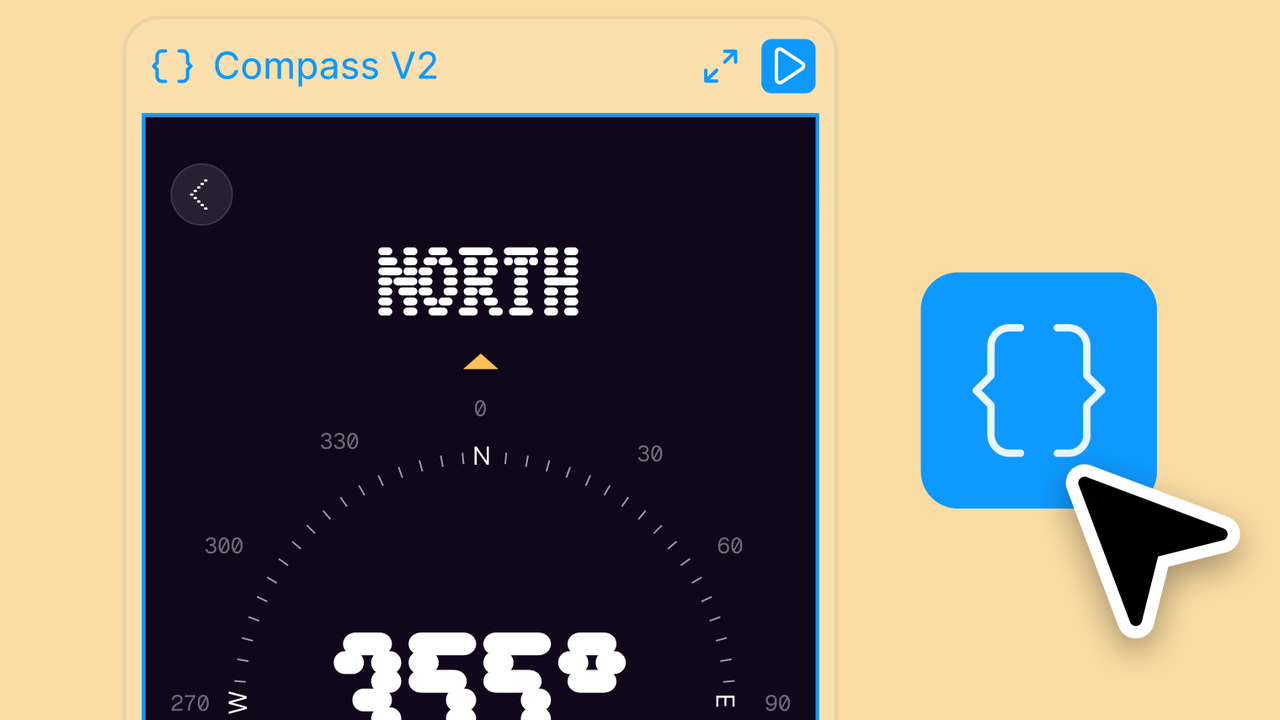
The agent fetches designs, frames, and nodes as structured data instead of guessing from a screenshot. Layout, text, colours, spacing, and component structure all come through as data the agent can reason about and reproduce faithfully.
2. Variables and design systems, not just pixels
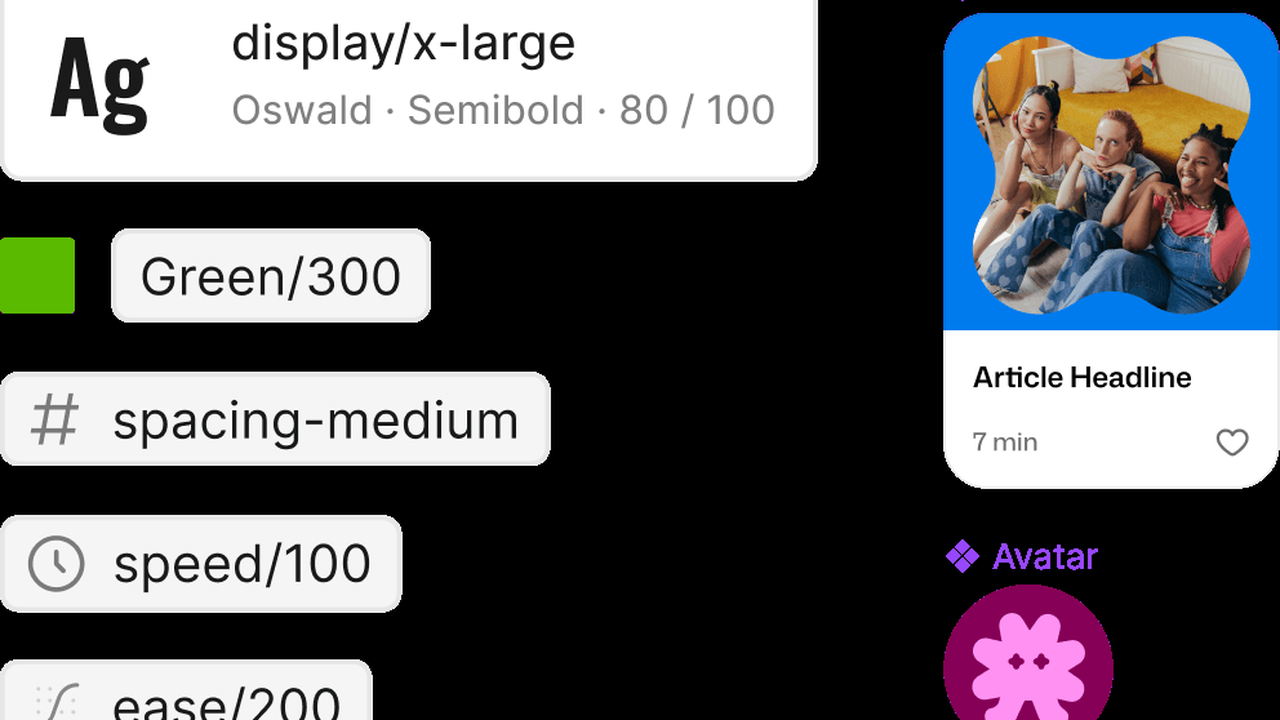
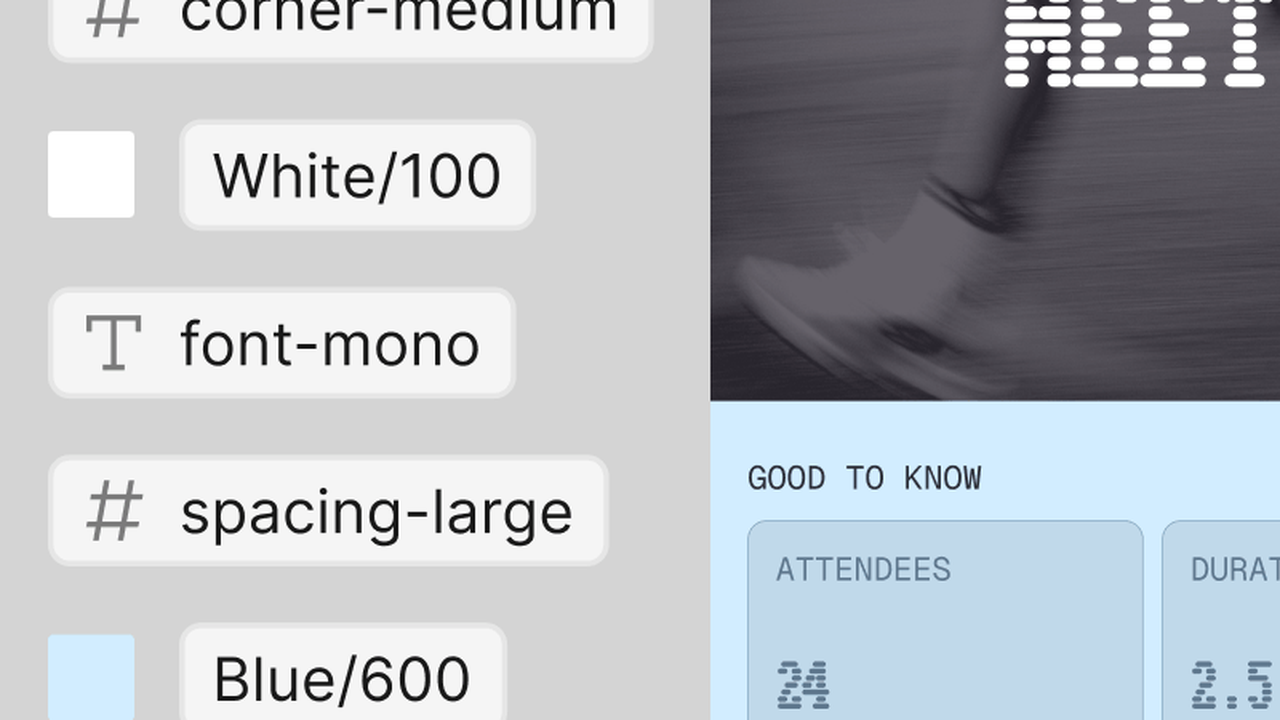
Variables for colour, type, and spacing are exposed directly, so the generated code uses the design tokens instead of hard-coded values. The output stays consistent with the design system rather than drifting into one-off styles.
3. Write back into Figma
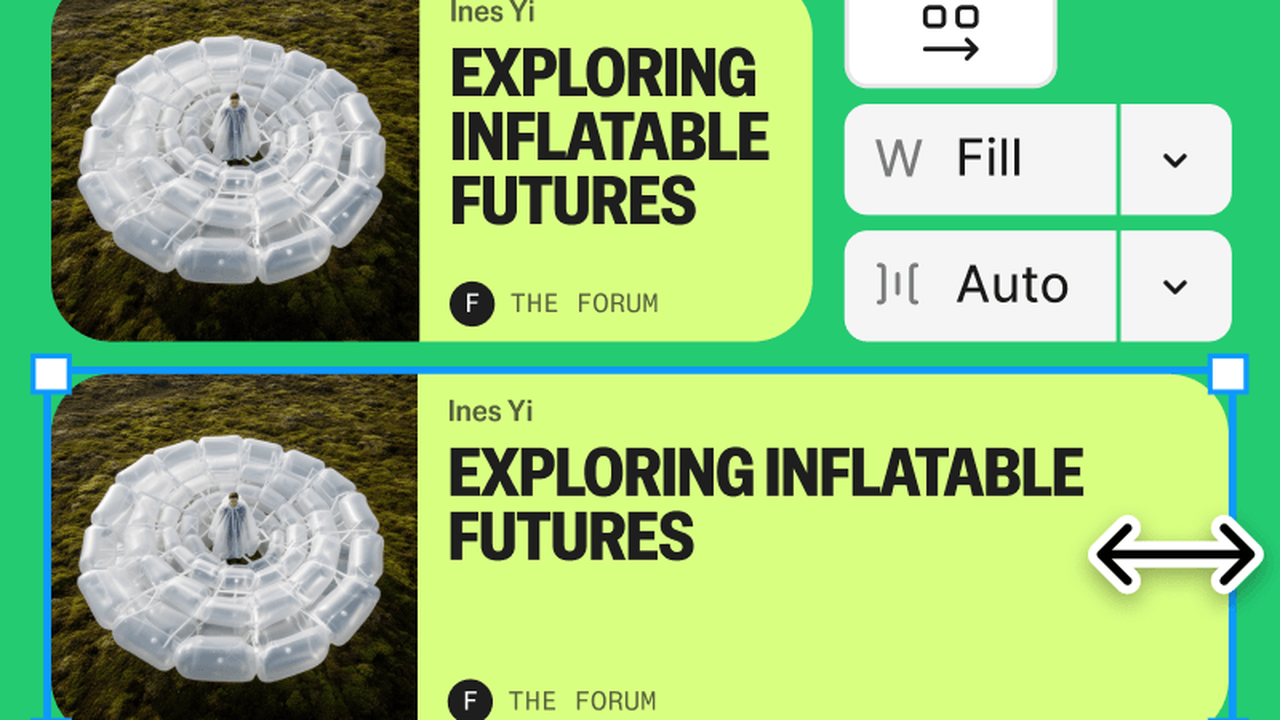
Write tools let the agent create frames, edit text, and adjust layout inside Figma itself. The loop works in both directions: design to code, and code-driven edits back to the design file.
4. Screenshots for visual verification
The agent can pull screenshots of a frame or the whole file, so it can check its own output against the design and fix visual differences instead of shipping blind.
5. Official skills and plugin
The official guide repository ships a Figma plugin and ready-made skills that teach the agent the design-to-code workflow, including how to pick the right frame, handle components, and structure the generated code.
How It Works
Connect your MCP client to the Figma remote endpoint and authenticate with your Figma account. In Claude Code the connection is a single command; in Cursor and VS Code it is a short JSON entry. Once connected, point the agent at a Figma file or a specific frame and ask it to implement it. The agent reads the design data, generates the code in your project, and can take a screenshot to verify the result matches the design.
Because the server is remote and hosted by Figma, there is nothing to update or keep running. You control access through your Figma account, and the agent only sees the files you give it access to.
Who Should Use Figma MCP?
Frontend developers who implement Figma designs, design engineers who maintain a design system, and product teams that want the handoff to stop being a bottleneck. If your workflow already runs through Figma and a coding agent, this is the connection that makes the two talk to each other directly.
Figma MCP Pricing
Free to connect; requires a Figma account. The remote server authenticates with your Figma login, and usage follows your Figma plan.
Figma MCP Pros and Cons
Pros
- Official Figma server: the design data is authoritative, not scraped or guessed
- Remote and hosted: nothing to install, run, or update locally
- Variables and design tokens come through as data, so output stays on-system
- Read and write in both directions, plus screenshots for verification
Cons
- Proprietary terms: the server and its data are governed by Figma's developer terms, not an open licence
- Requires a Figma account and network access to Figma's hosted endpoint
- Claude Desktop has no published JSON config; it connects through the Figma connector instead
Final Verdict
If your product is designed in Figma and built by an AI agent, this is the first MCP server to install. It is official, it is hosted, and it turns the most common handoff in software into a direct conversation between the design and the code. Start with one frame, compare the output with the design, and let the agent close the gap itself.